Overview
Intermittent SMS delivery delays can occur when STV statistics show increased “Storage Duration” (messages remaining stored for minutes), often during peak traffic windows. In this scenario the primary driver may be AMS rate limiting: when delivery-attempt demand reaches the configured AMS ceiling (amsPropMaxDeliveryRate), the SMSC buffers messages in AMS, which increases Storage Duration until delivery attempts can proceed.
You can think of the AMS as a fluid buffer, where the rate at which messages delivery attempts can be made is controlled by the amsPropMaxDeliveryRate:
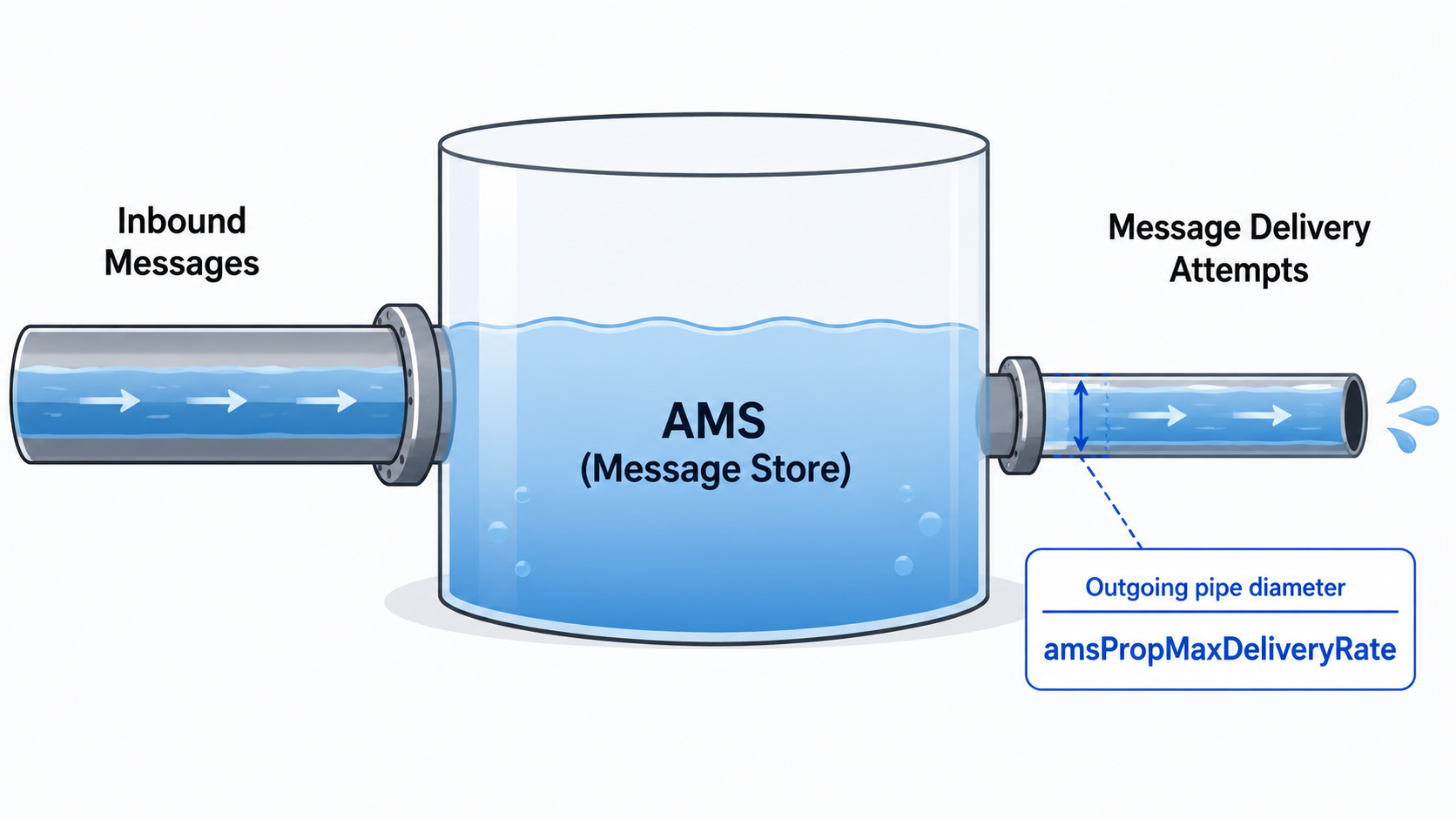
When the rate of messages flowing in is higher than the amsPropMaxDeliveryRate, then messages are stored in the AMS for longer before they can be delivered.
How to Recognize the Issue
Symptoms
- STV “Storage Duration” histogram shifts from mostly sub-5 seconds storage to 1–4 minutes, often with a long tail (>10 minutes) during busy hours.
- More severe cases may reach a multi-minute gap between the time a message is stored and the time it is delivered (e.g., OTP and MT delivery delays).
Root Cause
This delay pattern can occur when the AMS reaches its configured delivery-attempt ceiling. When instantaneous demand exceeds the configured limit, the AMS buffers messages (which is the expected behavior), and that buffering is reflected as increased STV “Storage Duration”.
-
Runtime ceiling (what the running system is using):
amsPropMaxDeliveryRate.0visible intp_walkall- The default value is 150 messages/second
-
Configured value (what you set in configuration):
-
amsmaxdeliveryrate="<value>"in the/usr/TextPass/etc/common_config.txt
-
Important nuances
- Even if average delivery rate is below the ceiling, short bursts can still clip at the limit and cause short-lived Storage Duration spikes. Generally this is only observed with short bursts, and is not a constant issue.
- High failed delivery attempts (retries) consume delivery-attempt capacity and can amplify delays by increasing pressure on AMS.
Troubleshooting Methodology
1) Confirm whether AMS is clipping at the rate limiter
On each SMSC, check the runtime ceiling:
tp_walkall | grep amsPropMaxDeliveryRateIf Storage Duration spikes coincide with periods where delivery attempts are pinned near this value, AMS rate limiting is a strong contributor.
Optional: compute delivery-attempt rate from two samples
Take two tp_walkall samples separated by a known interval (Δt seconds):
-
Method A (Delivered + Failed):
- Rate ≈
((ΔamsCntDeliveredMaster.0 + ΔamsCntFailedMaster.0) / Δt)
- Rate ≈
-
Method B (MXIP counter):
- Rate ≈
(ΔmxipTagCntRxDeliverSmRequest.0 / Δt)
- Rate ≈
We have attached a script: amsDeliveryRate_DelayCollectorCalculator.zip that you can run on the AMS nodes, which will collect and calculate this data for you automatically. Instructions on how to use the script are in the bundled README file. It has very low overhead, and should have no impact on the performance of the server. If you believe you are experiencing this issue, please run this script during the busiest traffic of the day, then stop it and collect and share the results with Support for verification.
The data collected may look like this when plotted:
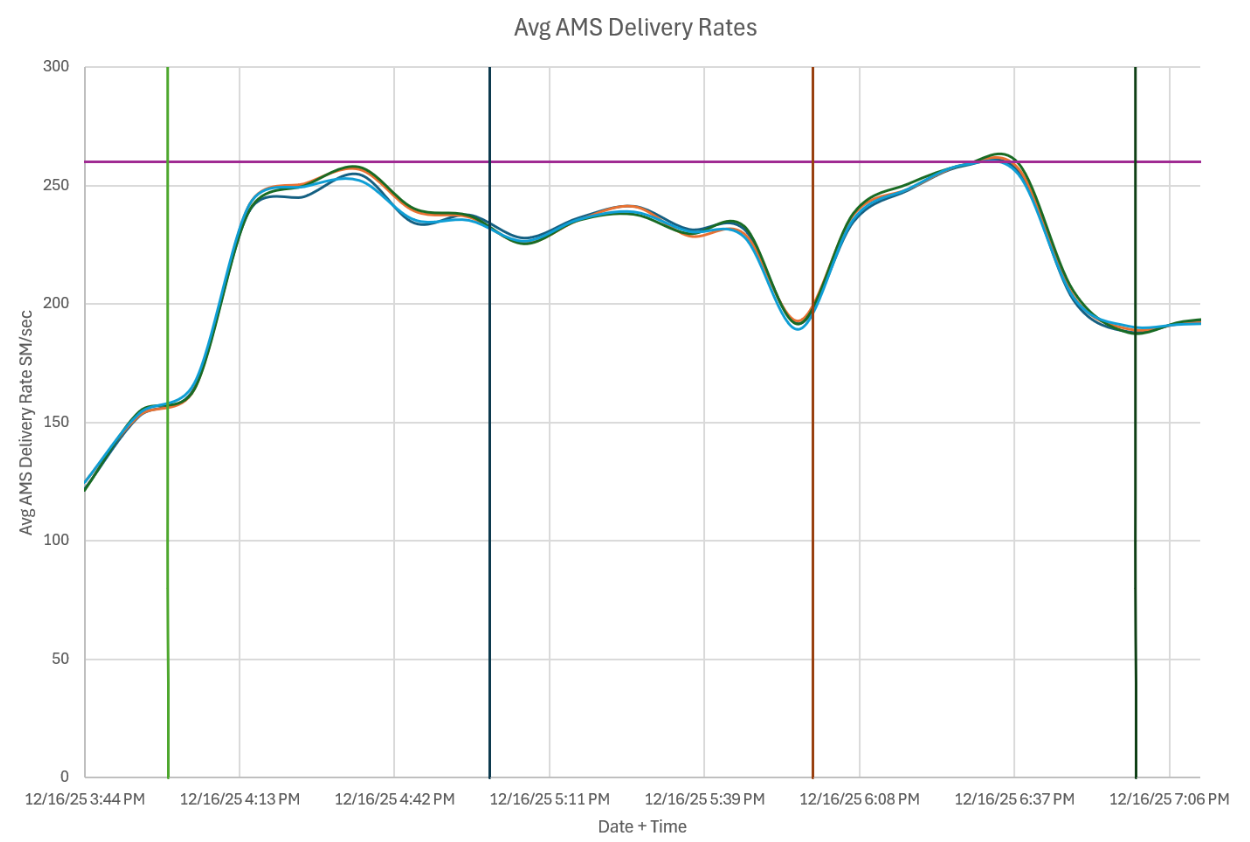
A purple horizontal line was added to indicate the current amsPropMaxDeliveryRate value. In this case, there were two instances where the Average AMS Delivery Rate was touching the celling, which means that there were instances of clipping (as the average indicates that both higher and lower values of the rate exist.)
2) Ensure configuration changes are applied at runtime (common pitfall)
It is possible for configuration files to show a new value while the running system still uses the old value. Always verify after changes:
tp_walkall | grep amsPropMaxDeliveryRateSolution (Step-by-Step)
Step 1 — Back up and open the common configuration file
Log in to the OAM/MGR node as the textpass user. The standard common semi-static configuration file is:
/usr/TextPass/etc/common_config.txtCreate a backup before making any changes:
cd /usr/TextPass/etccp -p common_config.txt common_config.txt.$(date +%Y%m%d%H%M%S)
Then open the file for editing:
vi /usr/TextPass/etc/common_config.txtThis is the system-wide common configuration file used for common semi-static settings.
Step 2 — Update the AMS delivery rate limit configuration
Locate the amsmaxdeliveryrate setting in the file and change it to the target value. We recommend increasing gradually (by 15-30 at a time) then testing to see if the issue is resolved.
Example:
amsmaxdeliveryrate="270"Example incremental tuning pattern (adjust to your environment): 250 → 260 → 270 → 285.
Step 3 — Validate the common configuration (safe, no downtime)
Validate the updated file before applying the change:
tp_config --validatecommonconfig usr/TextPass/etc/common_config.txtIf the command returns no output, the file validated successfully. The validation modes do not restart services.
Step 4 — Apply the change (TextPass restart may be required)
After the file is updated and validated (check the last modified time of the common_config.txt file on each target node), restart TextPass on each affected traffic element node one node at a time during a maintenance window.
Example:
tp_stop --textpasstp_start --textpasstp_status
Wait until textpass returns to operating before moving to the next node.
Step 5 — Verify the runtime value after restart
On each node:
tp_walkall | grep amsPropMaxDeliveryRateConfirm it reflects the new target (for example, 270). If it still shows the old value, the change did not apply to the running system.
Step 6 — Monitor and tune incrementally
- Increase in small steps (commonly +15 or +30), then observe over the next high traffic period:
- STV “Storage Duration”
- Customer-reported latency
- System stability (CPU, disk I/O, alarms)
- Revert to the last stable value if raising the rate introduces instability.
- Plan for ongoing tuning/capacity management if intermittent recurrences continue during later peak periods.
Validation (Confirming Improvement)
- After applying the change and restarting TextPass:
tp_walkallshows the updatedamsPropMaxDeliveryRate.0.
- During the next busy window:
- STV “Storage Duration” no longer exhibits sustained minute-level spikes, or spikes are reduced.
- Collected metrics/counters show delivery attempts are no longer clipped flat at or hitting the configured ceiling for extended periods.
- If delays recur, correlate timestamps between STV spikes and the collection window to ensure the captured data overlaps the actual incident period (including any system-time vs local-time offset).
Frequently Asked Questions
- 1. How do I know if my SMS delays are caused by AMS rate limiting?
-
Check the runtime ceiling and compare it with delivery-attempt rates during the delay window:
- Runtime ceiling:
tp_walkall | grep amsPropMaxDeliveryRate - Delivery-attempt rate estimate: Δ(delivered + failed) over time
If delivery attempts repeatedly pin near the configured ceiling during the delay window, AMS is buffering messages due to the limiter, which increases Storage Duration.
- Runtime ceiling:
- 2. I updated
amsmaxdeliveryratebut nothing changed. Why? -
The configuration can be updated while the running system still uses the prior runtime value. Verify runtime with:
tp_walkall | grep amsPropMaxDeliveryRateIf it still shows the old number, restart TextPass on each SMSC (
tp_stop/tp_start) one node at a time during low traffic, then re-check. - 3. The collector/script fails with “Error running tp_walkall (exit code: 127)”.
-
This indicates
tp_walkallcould not be executed (often PATH/permissions). Run the collector as thetextpassuser (not root in environments where root cannot run TextPass tools), and ensure the TextPass binaries are in PATH (or calltp_walkallvia full path). - 4. Should I just keep increasing
amsmaxdeliveryrateas traffic grows? -
Increase gradually and monitor stability. This setting is a safety mechanism; raising it increases delivery-attempt pressure on downstream systems and local resources (notably disk I/O). If you observe instability after a change, revert to the last stable value and reassess capacity planning.
Matthew Mrosko
Comments